TL;DR — Quick Summary
Fix double/triple overtime in Aspel NOI: workweek, 2x/3x factors, LFT limits, SDI, and CFDI perceptions 019/020 before stamping payroll. IMSS Aspel SAT Mexic...
Aspel NOI is essential for monthly and bimonthly compliance with IMSS, SAT, and employees. When a technical block appears, payroll, accounting, or the external firm cannot close the period: quota payments, pay stub stamping, or electronic accounting slip. This article documents real messages, menu paths, on-disk files, and recovery sequences tested on Windows 10/11 with official IMSS and Aspel installs.
The failure often appears after a Windows upgrade, PC replacement, certificate renewal, or incomplete backup restore. It does not replace vendor support; it is an ordered diagnostic guide to cut downtime and avoid inconsistent SUA.MDB, SAT XML, or stamped payroll.
Before changing configuration, back up working folders (C:\CobranzaSUA\, Aspel company .GBK, exported XML) and record the exact error text, program version, and affected period date.
The Error
When operating Aspel NOI, Windows or the validator may show:
“Importe de horas extra incorrecto respecto al reloj checador”
“ISR de horas extra no coincide con tabla mensual”
“Rechazo PAC: percepción 019 Horas extra inválida”
“Factor triple aplicado en horas que debían ser dobles”
On some PCs the message is generic while useful detail sits in a local log, installer console, or Event Viewer. Capture the full string; the messages above point to root causes (permissions, missing components, stale data, or unmet IMSS/SAT rules).
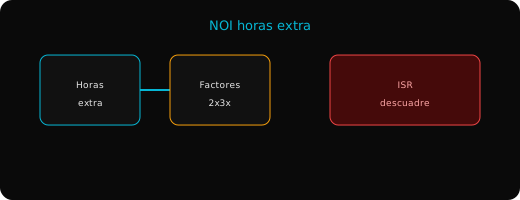
If only one Windows user fails, compare permissions and profile; if all fail, check install integrity, pending update, or network/antivirus blocking: Expediente > Horario, Captura de tiempo extra por periodo, Tabla de factores 2x y 3x.
Cause of the Problem
Insufficient PC configuration or permissions
Windows 11 and corporate policy block non-elevated installers, regsvr32, or writes to Expediente > Horario. Running without Administrator leaves OCX/DLL unregistered even after files copied.
Outdated or wrong-architecture platform components
Legacy IMSS apps need 32-bit pieces (SysWOW64, Jet 4.0, JRE 8 x86). Installing only 64-bit runtimes or Java 17+ breaks signature applets and Access databases.
Incomplete period data or authority mismatch
In SUA/IDSE, missing movement imports, old vigencia tables, or wrong employer registry block payment files. In Aspel NOI/CFDI, hand-edited perceptions, stale SDI, or unsynced SAT catalogs cause stamp/validation failures.
Network, proxy, and perimeter security
Downloads from sat.gob.mx, sipare.imss.gob.mx, or Aspel updaters fail on SSL inspection or firewall rules. Antivirus may block Java, SUA.MDB, or Catalogos during writes.
Partial backup restore
Copying only one .mdb, XML from another month, or mixing fiscal years leaves broken references. Restore the full backup set and re-import later IDSE/PAC movements.
Step-by-Step Solution
1. Freeze the period and back up
Close the app, end hung processes in Task Manager, and copy data folders to a dated path. For SUA, ensure nobody else uses C:\CobranzaSUA\ and remove orphan .ldb only when no session is active.
2. Verify official build and privileges
Repair/reinstall from the official IMSS or Aspel package Run as administrator. On Windows 11 set Properties > Compatibility on the main executable: Windows 8 mode, disable high-DPI scaling, run as admin if UAC requires it.
3. Register components and 32-bit runtimes
From elevated cmd (SysWOW64), run required registration, for example:
regsvr32for OCX named in the error\n- Install Microsoft Access Database Engine 2010 Redistributable (x86) if Jet cannot open SUA.MDB
Check 32-bit java -version for IDSE; import e.firma into the Windows Personal certificate store (certmgr.msc).
4. Align period data before retry
In SUA: import EMA or IDSE .txt, refresh IMSS vigencia tables, recalculate quotas, generate test SIPARE. In Aspel NOI: rerun payroll processes without manual amount edits; validate XML against XSD. In COI/SAE: import chart before journals; sync SAT catalogs before bulk stamping.
5. Validate on portal or PAC
Upload files to the proper portal and confirm capture line, cancellation ack, or successful stamp on a pilot case before full batches.
6. Document and escalate
If IMSS/SAT service remains down after 24 hours or the database engine errors internally, open a ticket with employer registry, RFC, UUID, and exact version. Attach rejected XML, generated .SUA, and screenshots.
Prevention
- Standardize PC images with 32-bit components, IMSS JRE, and antivirus exclusions on data paths.
- Renew e.firma and SAT CSD 30 days early; update certificates same day in IDSE/SAE.
- Never run SUA or open
SUA.MDBfrom network shares or OneDrive; use localC:\CobranzaSUA\only. - Schedule backups after closing apps and monthly SAT catalog sync in Aspel.
- Reconcile Aspel NOI payroll with SUA and CFDI before paying quotas or dispersing net pay.
Summary
- Messages in Aspel NOI often combine Windows permissions, 32-bit components, incomplete period data, or expired SAT catalogs.
- Diagnostic order: backup, administrator, OCX/Jet/JRE registration, IDSE import, recalculation, portal/PAC pilot test.
- Key paths:
Expediente > Horario,Captura de tiempo extra por periodo,Tabla de factores 2x y 3x. - Keep evidence (XML, .SUA, screenshots) for IMSS/SAT audits.