TL;DR — Quick Summary
Fix Aspel SAE stamping timeouts: verify PAC URL in settings, outbound firewall port 443, valid CSD certificate, system clock sync, and HTTPS connectivity.

When Aspel SAE tries to stamp a CFDI and the dialog hangs until timeout, connection timed out, or could not connect to stamping service appears, the root cause is usually the network path between your workstation and the Authorized Certification Provider (PAC), not the invoice XML itself. This guide covers the five most common fixes in Mexico deployments: wrong PAC URL in SAE, firewall blocking port 443, expired or mis-imported CSD, system clock drift, and actual PAC outage.
The Error
Typical messages when stamping from Aspel SAE 6.x or earlier with electronic invoicing enabled:
Timeout error communicating with the PAC
Could not establish connection with the stamping service
The operation has timed out
SAE already built the pre-stamped XML locally but never received the TimbreFiscalDigital with UUID.
How stamping works in Aspel SAE
- SAE builds the CFDI 4.0 XML.
- Signs it with your issuer Digital Seal Certificate (CSD).
- Sends the package over HTTPS (port 443) to the PAC web service configured in the company.
- The PAC validates and returns stamp and UUID.
- SAE stores stamped XML and PDF.
If step 3 does not complete within the timeout window, you see timeout — distinct from SAT validation rejections that return in seconds with explicit error codes.
Cause 1: Incorrect PAC URL in SAE
Most common after switching PAC vendors or cloning settings from another company.
Check:
- Web service URL — must match your PAC onboarding document (Finkok, SW Sapien, Edicom, etc.), not the marketing website or a sandbox endpoint in production.
- PAC username and password — separate from CSD; issued in the PAC portal.
- Issuer RFC — must match the loaded CSD.
- Trailing spaces — a space at the end of the URL breaks connectivity silently.
Where to configure:
- Open Aspel SAE as administrator.
- Go to Configuration → Company (or Utilities → Stamping configuration by version).
- Open Electronic invoicing / CFDI stamping.
- Enter exact HTTPS URL, credentials, and
.cer/.keypaths. - Save and sign out before testing.
Compare character by character with your PAC welcome email. Do not reuse another ERP’s PAC URL.
Cause 2: Firewall or antivirus blocking port 443
SAE uses standard outbound HTTPS (TCP 443). Corporate firewalls, UTM appliances, and SSL-inspecting antivirus often block PAC domains not on an allow list.
Diagnosis on Windows:
Test-NetConnection timbrado.example-pac.com.mx -Port 443Replace with your real PAC host (no https://). Expect TcpTestSucceeded : True.
Also test in a browser from the same workstation:
https://[pac-host]/ or the provider status URLFix:
- Outbound TCP 443 rule on Windows Firewall for the stamping PC or
AspelSAE.exe. - Perimeter allow list for PAC FQDNs (not only IP; many PACs sit behind CDNs).
- Temporarily disable HTTPS inspection to confirm; then add a documented exception.
On networks with a corporate proxy, confirm other HTTPS apps work; SAE may rely on OS proxy settings.
Cause 3: Digital Seal Certificate (CSD)
An expired, revoked, or wrong-RFC CSD usually triggers error 401 (dedicated guide), but broken TLS can surface as timeout.
Checklist:
- Log in to the SAT portal with e.firma → Certifica tu RFC.
- Verify CSD expiration (typically four years).
- If expired, generate new
.cer/.keyand password. - In SAE, replace old files in electronic invoicing settings.
- Upload the same CSD to the PAC portal the same day.
The .key password is the one set when generating the CSD at SAT, not the e.firma password.
Cause 4: System clock skew
PAC services and TLS chains reject connections when local time is minutes off. SAE may report a prolonged handshake as timeout.
Fix:
w32tm /query /status
w32tm /resync
In Windows: Settings → Time & language → Sync now. Use (UTC-06:00) Central Time (Mexico) or your branch timezone.
If stamping runs on a server overnight, sync NTP there too — not only the accountant’s PC.
Cause 5: Real PAC outage
When URL, firewall, CSD, and clock are correct, check your PAC service status page or support line. Scheduled maintenance is common on weeknights.
Log exact time, issuer RFC, and internal folio when opening a ticket; the PAC correlates web service logs.
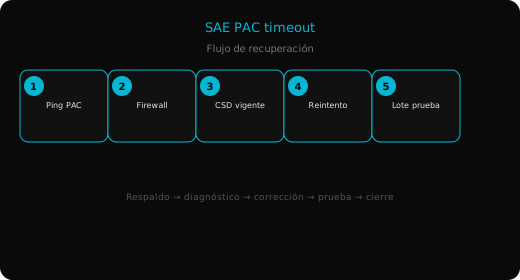
Step-by-step resolution
1. Test network before SAE
Confirm HTTPS to the PAC host via browser and Test-NetConnection. If this fails, reinstalling SAE will not help.
2. Audit PAC settings in the company
Review stamping configuration: URL, user, RFC. Match the PAC portal. Save.
3. Validate CSD and time
Renew CSD if expiring within 30 days. Resync clock. Reimport .cer and .key.
4. Restart Aspel SAE
Close completely (including tray icon if present). Reopen and stamp a symbolic test invoice with valid receiver CSF data.
5. Escalate with evidence
Capture the error screen, Test-NetConnection output, SAE version (Help → About), and contact the PAC. Keep the pre-stamped XML in electronic document folders for contingency procedures if your policy allows manual stamping.
Prevention
- Document PAC URL, CSD expiration, and authorized stamping workstation (never store PAC password in plain text).
- Renew CSD 90 days early; error 401 is clearer but avoid month-end surprises.
- Include PAC domains in firewall templates for new branches.
- Monitor NTP on servers running automated stamping.
- After Firebird server migration (database connection guide), confirm the stamping PC still has Internet egress.
Summary
- Aspel SAE stamping timeout is usually HTTPS connectivity to the PAC or PAC/CSD configuration, not invoice line items.
- Verify PAC URL in SAE, open port 443, valid CSD, and synchronized clock before assuming provider outage.
- Test with Test-NetConnection and browser from the same PC, then stamp a test CFDI.
- Keep CSD and PAC credentials aligned across SAT, PAC portal, and Aspel SAE on the day of any change.