TL;DR — Quick Summary
Aspel COI unbalanced journal entry: align debits and credits, fix rounding, replace major accounts, reopen closed periods, and validate SAE/NOI interfaces.

An unbalanced journal entry in Aspel COI occurs when total debits do not match total credits. The system will not post to the general ledger or produce reliable reports while the difference persists, blocking month-end close, bank reconciliations, and SAT electronic accounting. This error is common in manual entries with decimals, Excel imports, and automatic entries from Aspel SAE or Aspel NOI.
The Error
When saving or posting an entry, COI may show:
“The journal entry does not balance”
“Total debits differ from total credits”
“Cannot post entry to general ledger”
“Error: closed period”
At the bottom of the entry editor, Total Debit and Total Credit show different amounts — sometimes by as little as $0.01 that is easy to miss.
Root Causes
Rounding and decimals
Entering amounts with more than two decimals, calculating VAT on fractional bases, or importing from Excel with high-precision formulas creates cent-level differences between visible and internal totals.
Foreign currency conversion
Entries in USD or other currencies convert at the day’s exchange rate. Per-line rounding can leave a difference that must go to the exchange difference account.
Major accounts without direct posting
Grouping accounts in the chart do not accept direct debits or credits. Using a major account may allow partial capture but fails on posting or produces inconsistent totals.
Closed accounting period
Trying to modify an entry in a closed month prevents saving corrections. The closed-period message is sometimes confused with a balance error when the user cannot update amounts.
Misconfigured SAE/NOI accounting interface
Automatic entries from sales, purchases, or payroll depend on account mapping in Configuration > Accounting interface. An obsolete or missing account code creates lines that do not sum correctly.
Step-by-Step Fix
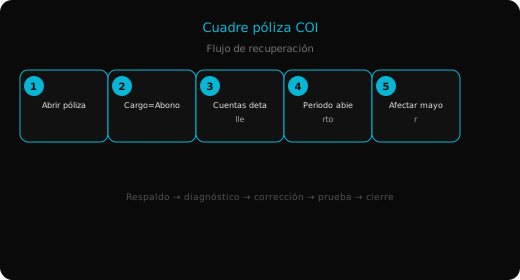
1. Open the entry and review totals
Find the entry in Journal Entries > Inquiry. Note Total Debit, Total Credit, and the exact difference. Identify whether the source is manual, import, or interface.
2. Fix the balance difference
Review each line for extra decimals or duplicate amounts. For differences under $1.00 MXN from rounding, add a movement to the adjustment or exchange-difference account for the exact missing amount.
3. Replace major accounts
In Catalogs > Chart of accounts, verify each account is a detail account accepting movements. Replace grouping accounts with the correct detail subaccount.
4. Manage the accounting period
If the month is closed, go to Configuration > Accounting periods, reopen temporarily, save the balanced entry, and close again. Document the reopening in your internal log.
5. Post and validate
With debits equal to credits, run Journal Entries > Post to ledger. Generate Reports > Trial balance to confirm the movement hit expected balances.
Prevention
- Always use two decimals in Mexican pesos for manual entries.
- Review accounting interface mapping after every chart-of-accounts change.
- Avoid importing Excel without rounding amount columns to two decimals.
- Close periods only after posting all entries for the month.
Summary
- An unbalanced COI entry means debits ≠ credits; the system will not post until fixed.
- Check rounding, foreign currency, major accounts, and closed periods.
- SAE/NOI entries require validating the accounting interface mapping.
- After balancing, post to ledger and validate in the trial balance.